
Step 1: Quiltster Account Set-Up
Access to Quiltworx University projects requires an active Quiltster subscription. Participation in this event includes a 6 month free trial of Quiltster.
Find your account status below to learn how to activate your free trial.
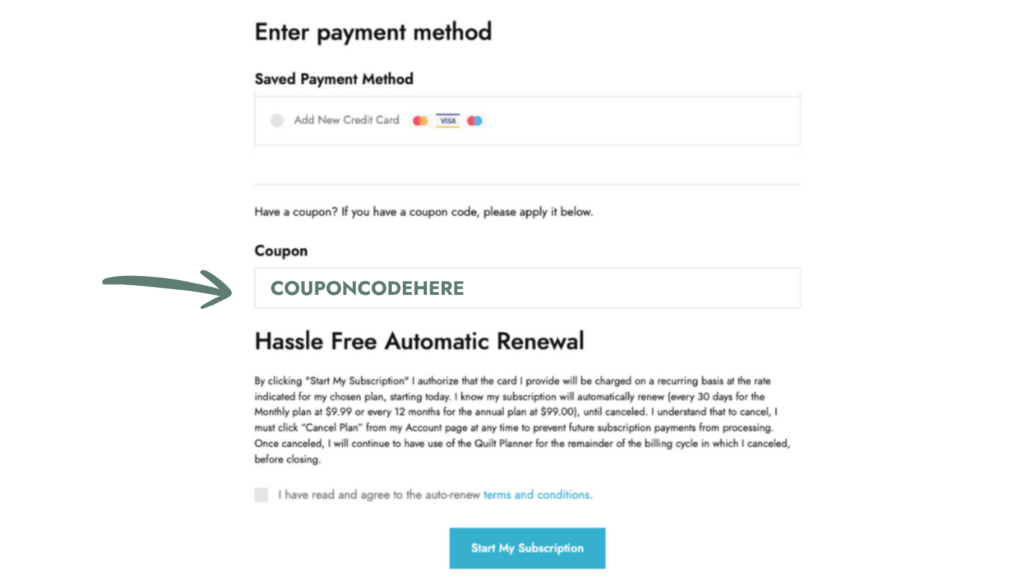
New Subscribers
- Visit Quiltster.com/subscribe
- Choose your subscription plan
- Enter your coupon code during checkout to apply your free trial months
- Start your subscription
Existing Subscribers
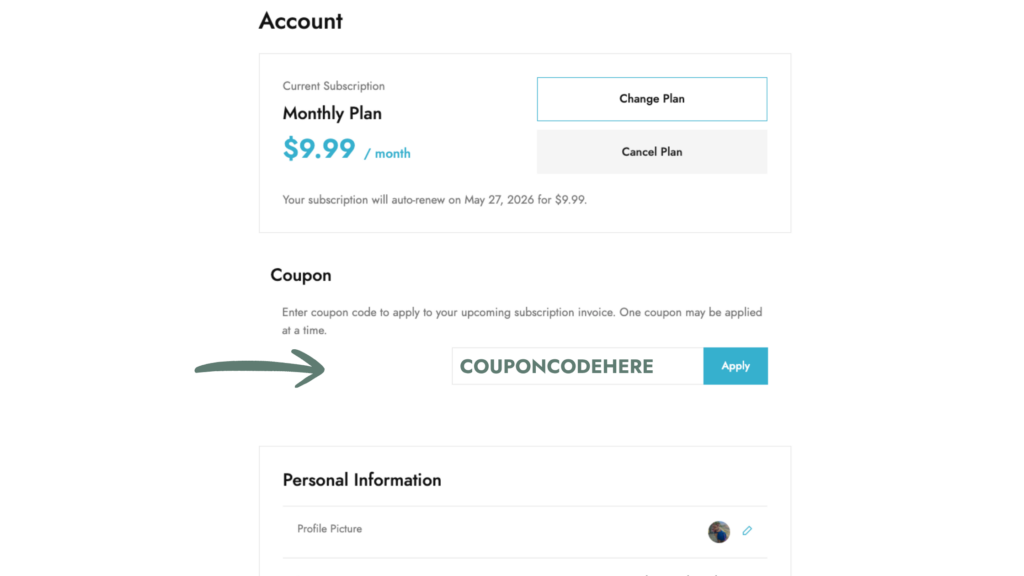
- Log in to Quiltster
- Visit your Account page
- Enter your coupon code in the Coupon section
- Click Apply
Your coupon will be automatically applied at the start of your next billing cycle.
Quiltworx Box Subscribers
If you’re currently participating in the Quiltworx Box Program and already have an active Quiltworx Box coupon applied to your Quiltster account, you will not be able to apply your Quiltworx University coupon yourself.
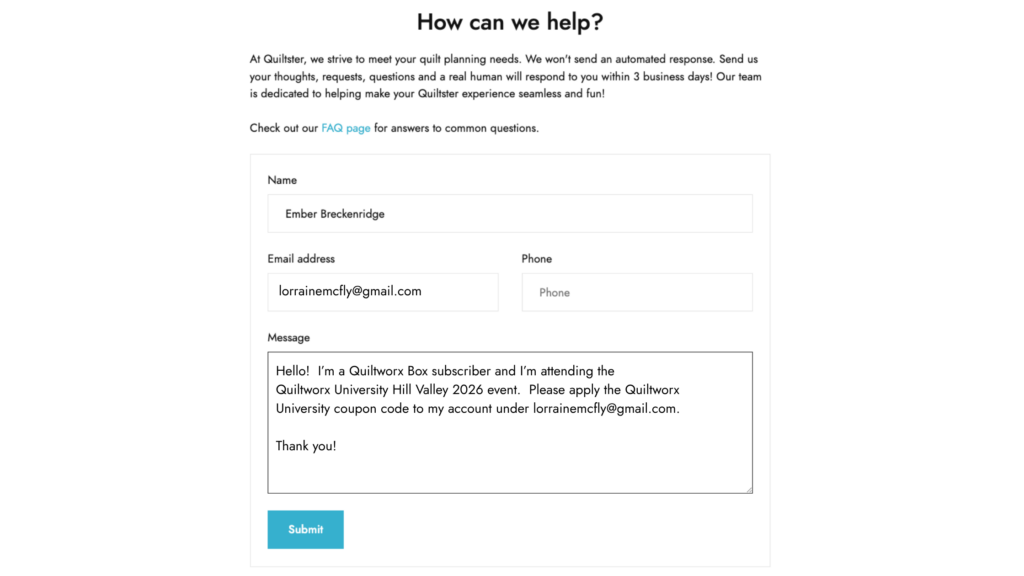
Instead, please contact Quiltster Support and include:
- A note that you are a Quiltworx Box subscriber
- The Quiltworx University event you are attending
- A request to have your Quiltworx University coupon applied to your account
Our team will verify your account and apply the coupon for you. Here’s a sample text to use:
Hello! I’m a Quiltworx Box subscriber and I’m attending the
Quiltworx University {event location and year] event. Please apply the Quiltworx University coupon code to my account under [your Quiltster email here].
Thank you!
Step 2: Request Access to Quiltworx University
After subscribing, contact Quiltster Support to request access to the private Quiltworx University event section of Quiltster.
Access must be granted by a Quiltster team member before the event portal becomes available.
Hint: Check your Dashboard to see if access has already been granted.
Finding the Event Portal
Once access has been granted and the event has officially opened:
- Log in to Quiltster
- Select Quilt Planner
- Scroll to the bottom of your Dashboard
- Click Enter on the Quiltworx University portal
This private area contains all templates and fabrics available for your event.
Quiltworx University Support
Contact Quiltster for help using the Quiltster platform, accessing your account or managing your subscription.
Contact Quiltworx for questions about Quiltworx University, including schedules, projects, event details, travel, shop info, etc. Quiltworx will also create a private Facebook Group for the event. Make sure to join the group to stay up to date with event news and announcements.