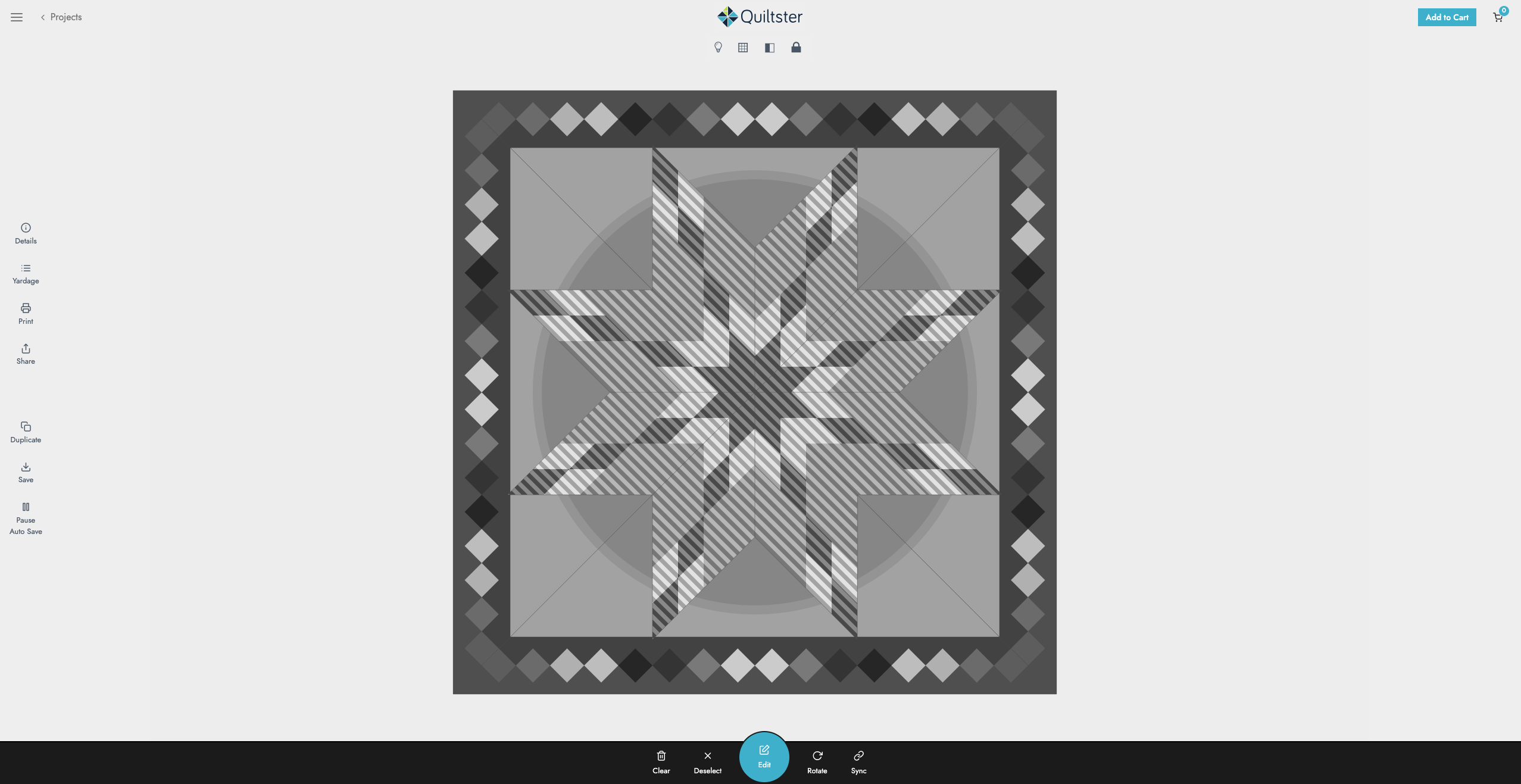
You’ve chosen your template, great job! Now it’s time to activate the pattern for editing so you can start adding fabric to your quilt in the next step.
This post shows you how to tell Quiltster what you want to edit. Helpful visual cues on the screen show you exactly what’s being selected.
My First Quiltster Project
This is step 3 of 5 in learning how to create a project in Quiltster. Follow along the entire My First Quiltster Project series and watch your dream quilt come to life.
- Choose a Pattern
- Choose a Template
- Activate Your Pattern for Editing ← You are here
- Add Fabric
- Save Project
Bonus Step: How to Share Your Project
Quick Start Steps
If you just want the short version, here it is:
- Hover over the quilt layout to identify block groups.
- Some patterns are a single block only. Other patterns consist of multiple groups of blocks.
- Click on a block group to activate it.
- Click Edit at the bottom of the screen to open the Block Editor where you will begin adding fabric.
For a detailed step-by-step guide, continue with the instructions below.
What are Block Groups
When a quilt pattern is digitized for Quiltster, we make sure to follow the pattern designers specifications exactly as they designed it.
Some patterns are made up of groups of blocks that repeat across the quilt layout. When customizing these patterns, you would select one block group to customize at a time. When one block in a group is customized, all blocks in that group are customized at the same time. That’s intentional and very helpful.
Some patterns are made up of a single block which consists of the entire pattern. When customizing these patterns, you simply select the entire quilt pattern to customize.
How to Identify a Block Group
Move your mouse slowly over the quilt layout. As you hover, you’ll see a set of blocks highlighted together. That highlight shows you:
- Which blocks belong to the same group
- What will be edited together
- How the pattern is structured
This hover highlight is just a preview, nothing is selected yet. Think of it as Quiltster saying, “Hey these blocks are connected.”
Some patterns don’t use block groups. Instead, the entire quilt activates as one large block, and you’ll color the smaller sections during the next step.
*Note: If using a smartphone, you can tap on an area of the quilt to see the groups.
How to Activate a Block Group
When you see the group you want to customize: Click once on any block in that highlighted group.
When activated, the group will display a striped overlay pattern. This striped look is your confirmation that the group is now active and ready to edit.

Center block group activated. All center blocks are selected and will be edited together.

Outer block group activated. All outer blocks are selected and will be edited together.
What Happens When a Group is Activated
Once a block group is activated:
- All blocks in that group will be edited together
- All will receive the same fabrics and colors
- Changes apply across the full group automatically
This is what makes Quiltster so efficient. You don’t need to edit each block one at a time unless you choose to.
How to Edit a Single Block within a Group (Unlock Feature)
Sometimes you may want blocks in the same group to look different if you want to:
- Alternate colors
- Create a rainbow colorway
- Any intentional variation from block to block
That’s where the Unlock feature comes in.
When you unlock the pattern, you can activate and edit individual blocks inside a group instead of all of them together.
We cover this fully in the tutorial, Unlock Blocks to Create Rainbow or Alternating Quilt Designs, but for now just remember:
Locked: Edit the whole group
Unlocked: Edit individual blocks
Open the Block Editor
After activating a block group, the Edit button at the bottom center of the screen will turn blue.
Click Edit to enter the Block Editor where you’ll begin adding fabric and color to your quilt.
That’s what we’ll cover next.
What's Next?
Continue with the next step in the My First Quiltster Project series:
- Choose a Pattern
- Choose a Template
- Activate Your Pattern for Editing
- Add Fabric ← Up next
- Save Project
Bonus Step: How to Share Your Project