Show off your design and inspire other quilters!
Once you’ve created a quilt plan you love, the fun doesn’t have to stop there. Quiltster makes it easy to share your project with the community and on social media so other quilters can see your ideas and creativity.
In this tutorial, you’ll learn how to:
- Share your project to the Quiltster Community Gallery, then
- Share your Gallery page on social media
This is a bonus step in the My First Quiltster Project journey, so let’s show off what you created!
My First Quiltster Project
This is the bonus step in learning how to create a project in Quiltster. Follow along the entire My First Quiltster Project series to learn how to create and share a project in the Quilt Planner.
- Choose a Pattern
- Choose a Template
- Identify & Activate Blocks
- Add Fabric
- Save Project
Bonus Step: How to Share Your Project ← You are here
Quick Start Steps
If you just want the short version, here it is:
Share to Gallery
- Go to My Projects from your Dashboard.
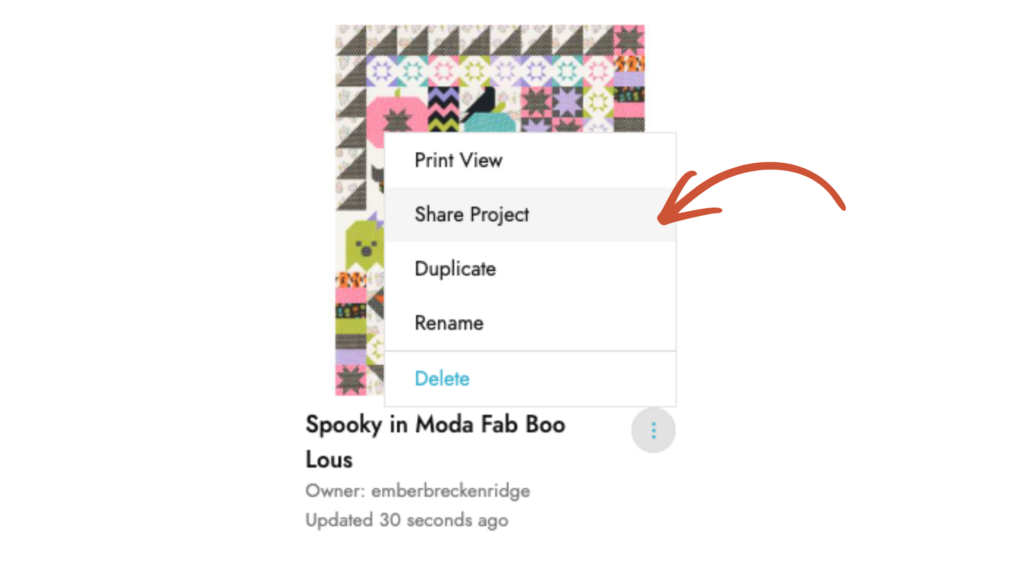
- Click the 3-dot menu on the project you want to share and click Share Project.
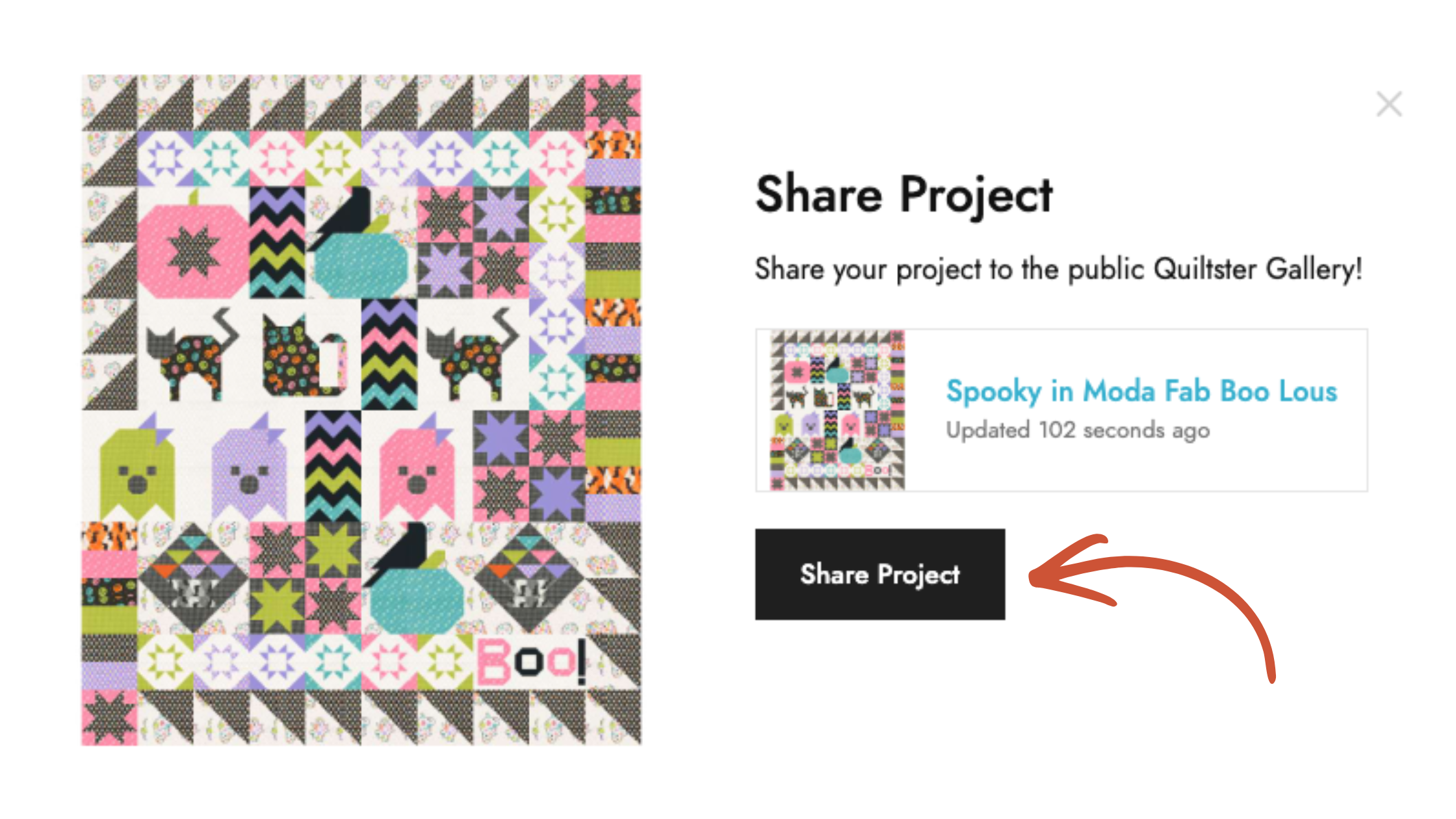
- Select Share Project on the pop up to publish it to the Quiltster Gallery.
Share to Social Media
- Open your project in the Gallery.
- Click the Link icon under the project image to copy your Gallery link.
- Paste the link into your social media post and tag @quiltsterinc.
For a detailed step-by-step guide, continue with the instructions below.
How to Share to the Gallery
First, publish your project to the public Quiltster Gallery so others can see it.
From your Dashboard
- Go to My Projects.
- Find the project you want to share and click the 3-dot menu on the project card.
- Select Share Project.
OR From inside the Quilt Planner
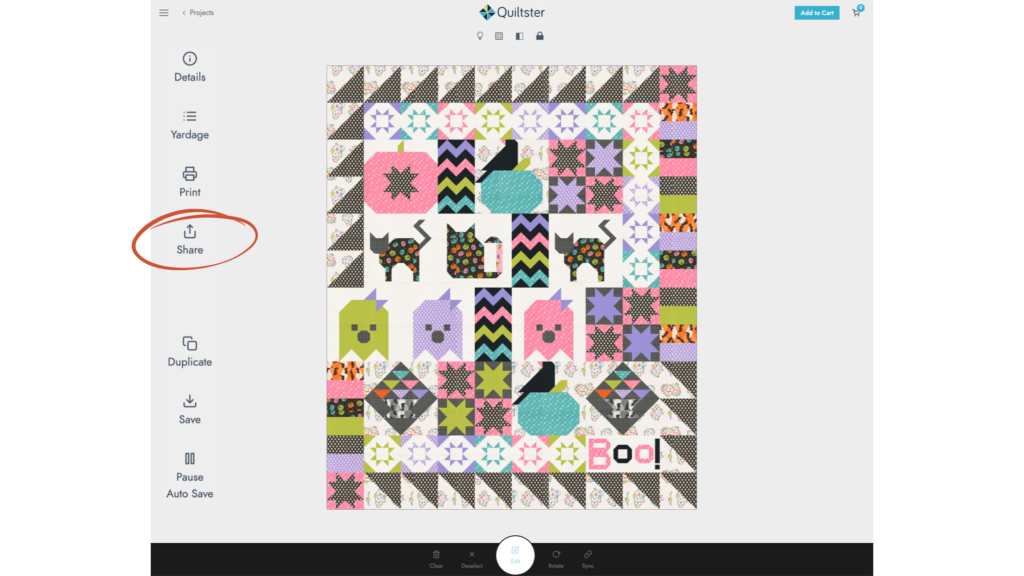
- Select Share on the left tool bar.
- Select Share Project
That’s it! Your project is now visible in the public Quiltster Gallery where other quilters can discover it.
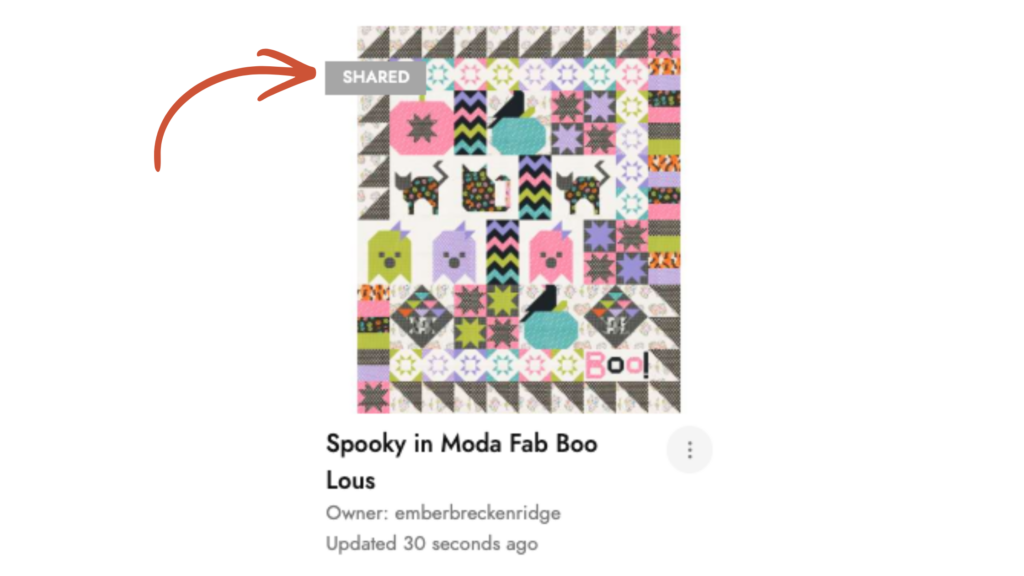
You can see which projects you have shared by going to My Projects and there you will see a little flag on the corner of your project.
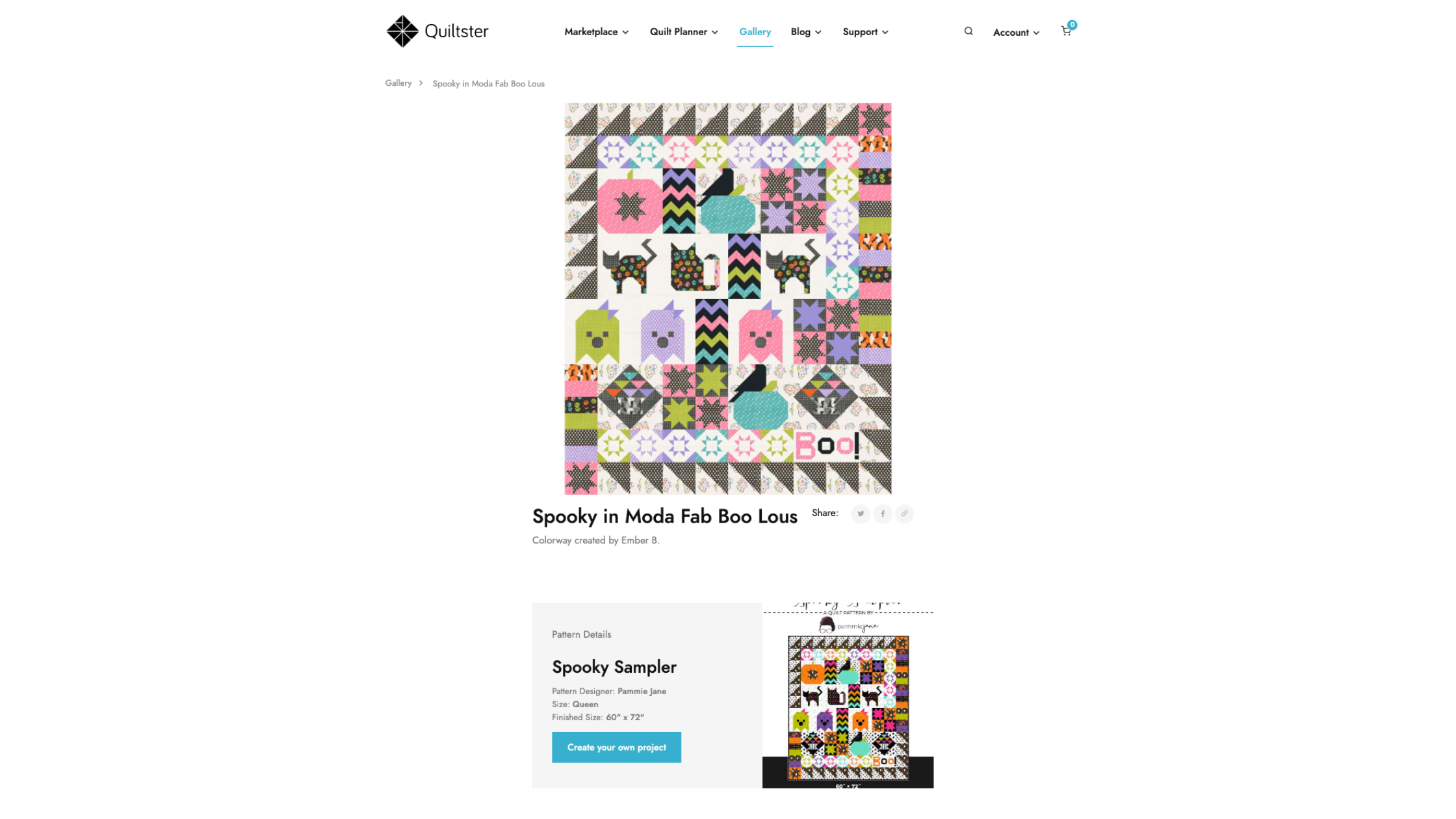
Your Gallery page displays a beautiful image of your Quiltster project that can be clicked to view larger. Since this is a design preview, yardage charts are not shown to the public which makes it perfect for sharing inspiration without giving away the full project details.
How to Share to Social Media
Ready to show your friends and quilting community what you created? The best way to share your project is to share the Gallery page.
- In the Main Menu, click Gallery.
- Open your project in the Gallery.
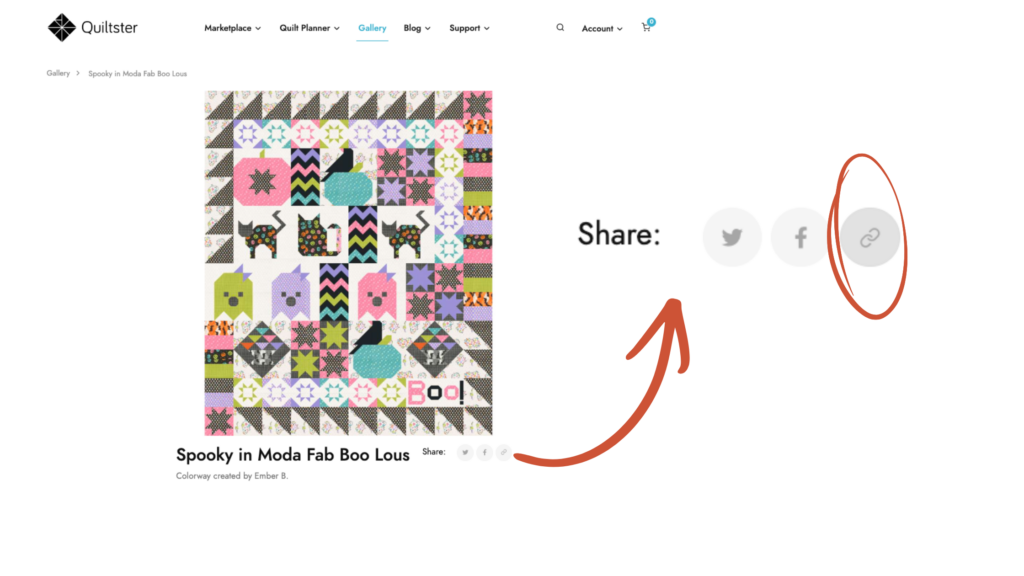
- Click the LINK icon to copy the link. (located under the image of your project)
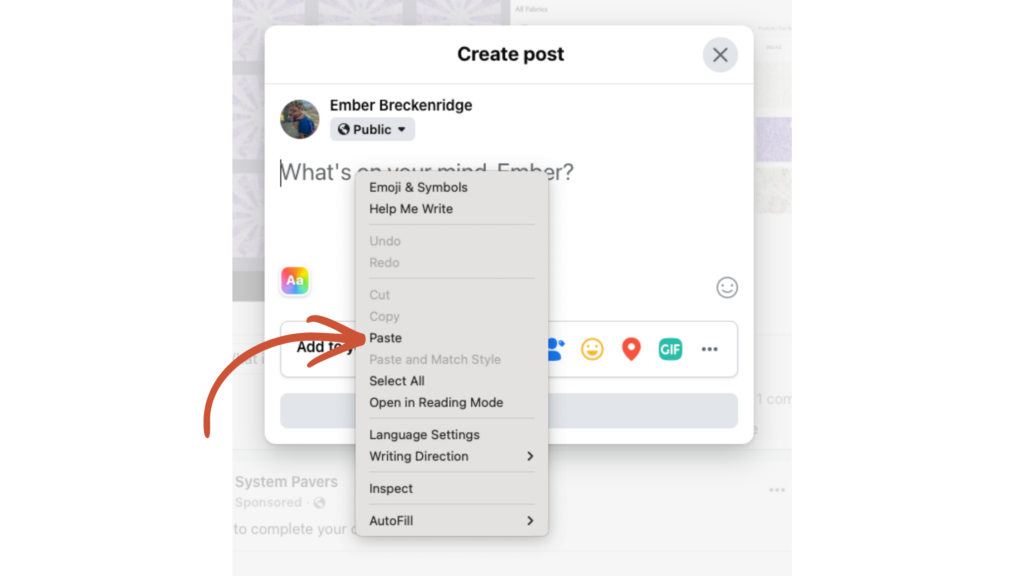
- Open a social media post and paste it inside a social post.
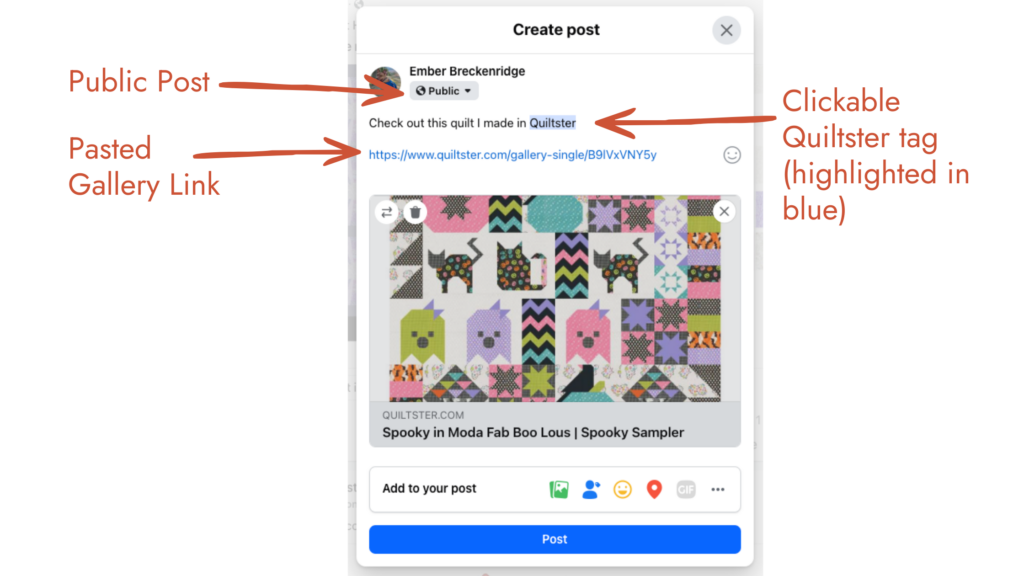
- Make your post public so we can see it.
- Tag @quiltsterinc so we know how to find your beautiful work!
Tips:
- While you’ll see icons for specific social platforms, we recommend using the LINK icon. This universal share button works best across all platforms.
- Make sure the @quiltsterinc tag turns blue in your post. If the tag doesn’t turn blue, the platform didn’t activate it and it won’t be clickable.
What Should You Say in Your Post?
If you’re not sure what to write, try sharing a little about your inspiration. A few ideas:
- Why did you choose these colors?
- Who are you making this quilt for?
- What fabric collection inspired you?
- Are you planning to make this quilt soon?
- Would you change anything in another version?
Even a simple sentence like “I’m planning this quilt for my granddaughter and couldn’t resist these colors!” helps bring your project to life.
Ready to Plan Your Own Quilt?
Now that you’ve seen how easy it is to create and share a quilt plan in Quiltster, it’s time to start one of your own.
With a Quiltster subscription you can:
- Customize quilt patterns with real fabrics
- See your quilt come to life before cutting fabric
- Automatically calculate yardage
- Save and share your quilt plans
✨ Start planning your next quilt today.