One of the most fun parts of using Quiltster is taking a pattern you love and watching it come to life with your own fabric choices. This post will walk you through how to find and select a pattern inside Quiltster so when you’re ready to design, you’re starting in the right place.
Choosing a pattern is step 1 of 5 in the My First Quiltster Project series:
- Choose a Pattern
- Choose a Template
- Activate Your Pattern
- Add Fabric
- Save Project
Bonus Step: Share Your Project
PRO TIP:
You don’t need a Quiltster subscription to browse the pattern catalogue. You’ll only need to subscribe when you’re ready to use the Quilt Planner.
Quick Start Steps
Get started with these quick steps, or keep reading for the full walkthrough.
- Go to the Quilt Patterns page.
- Click on a pattern image to learn about the pattern.
- Click Create Project.
This takes you to the first step of the Quilt Planning process where you will be asked to choose a template. Proceed to Step 2 of this series to learn what to do next.
Learn How to Find a Pattern
Where to find Patterns
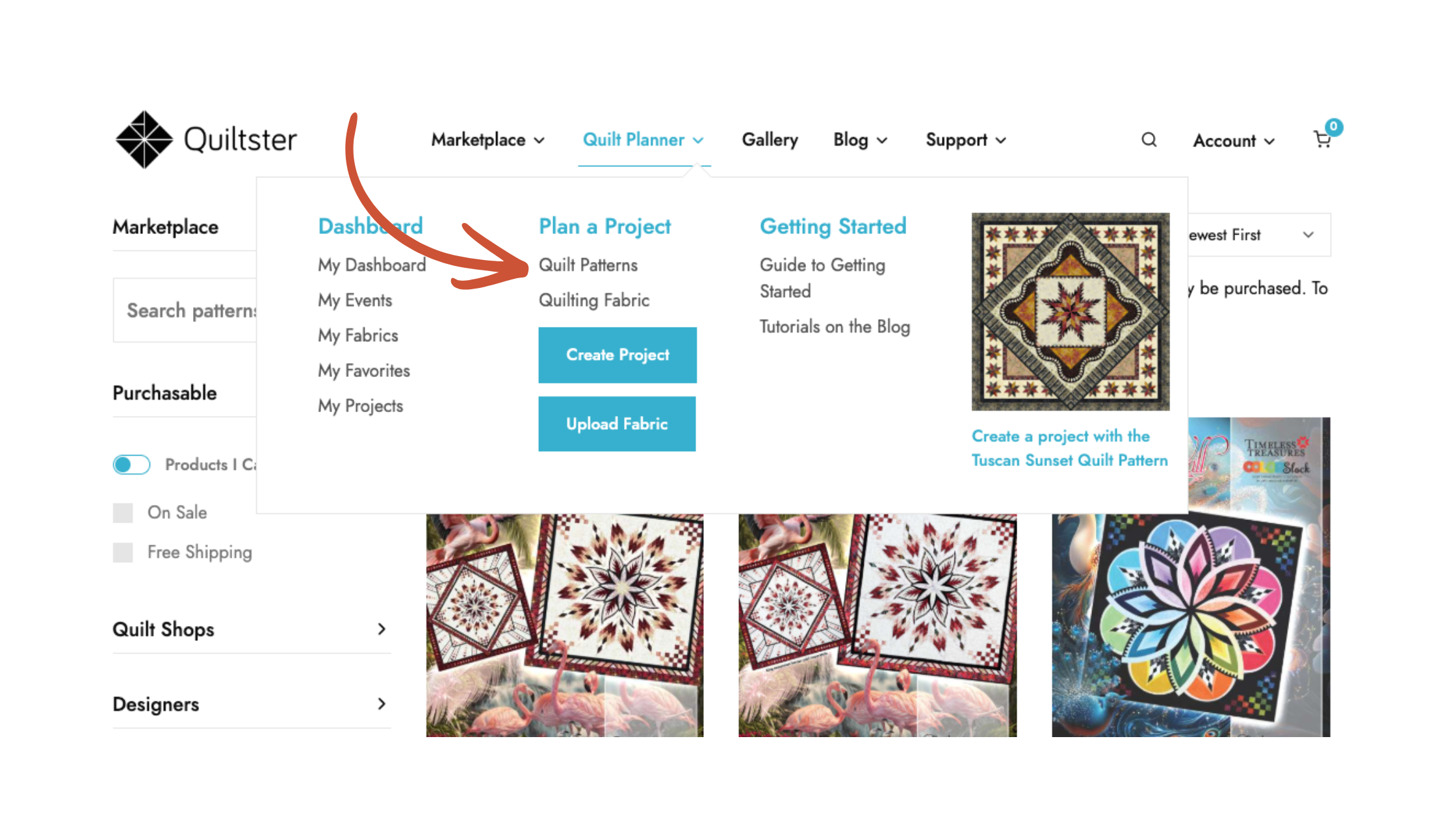
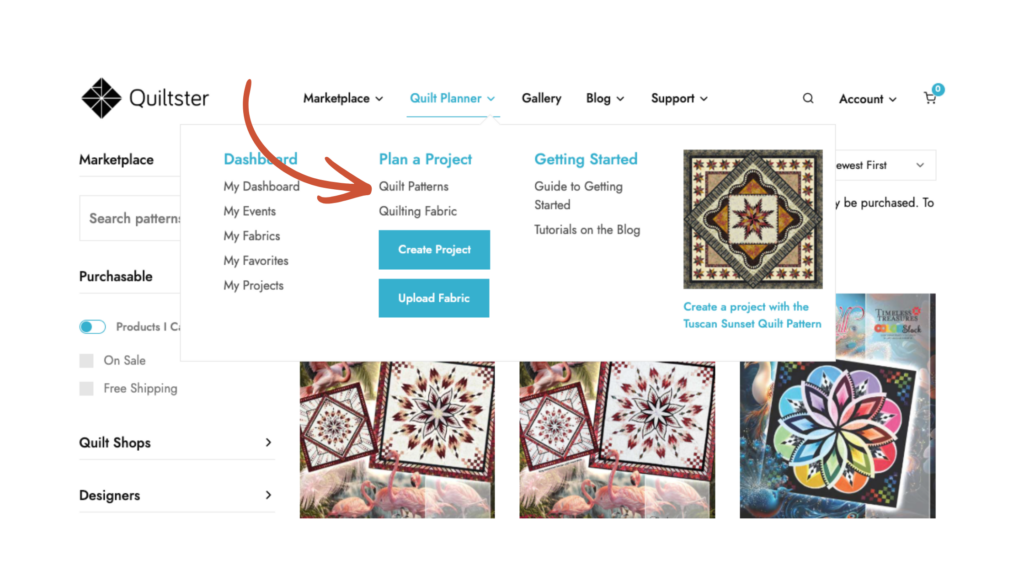
- Click Quilt Planner in the main menu.
- Choose Quilt Patterns.
This opens the full pattern catalogue.
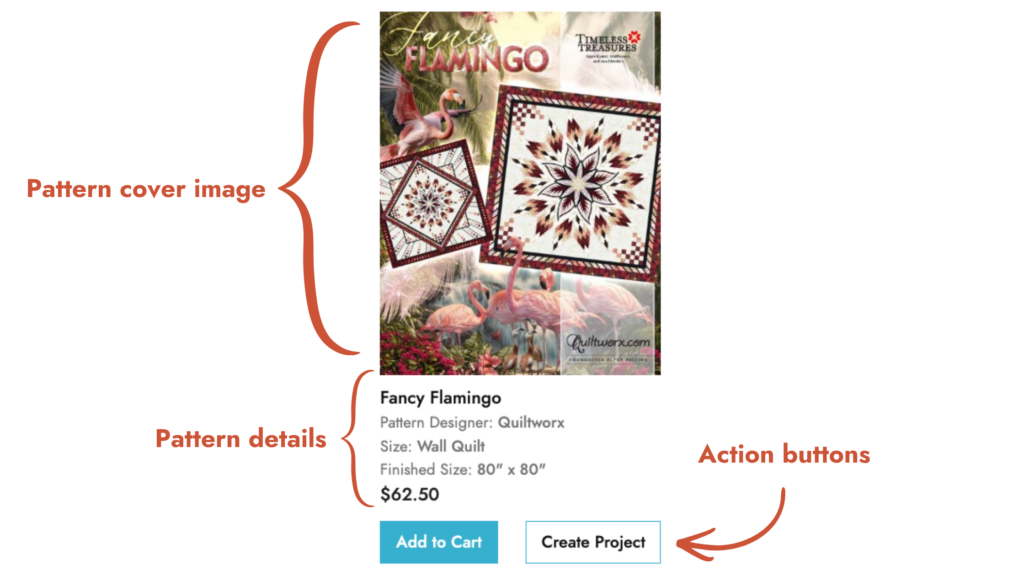
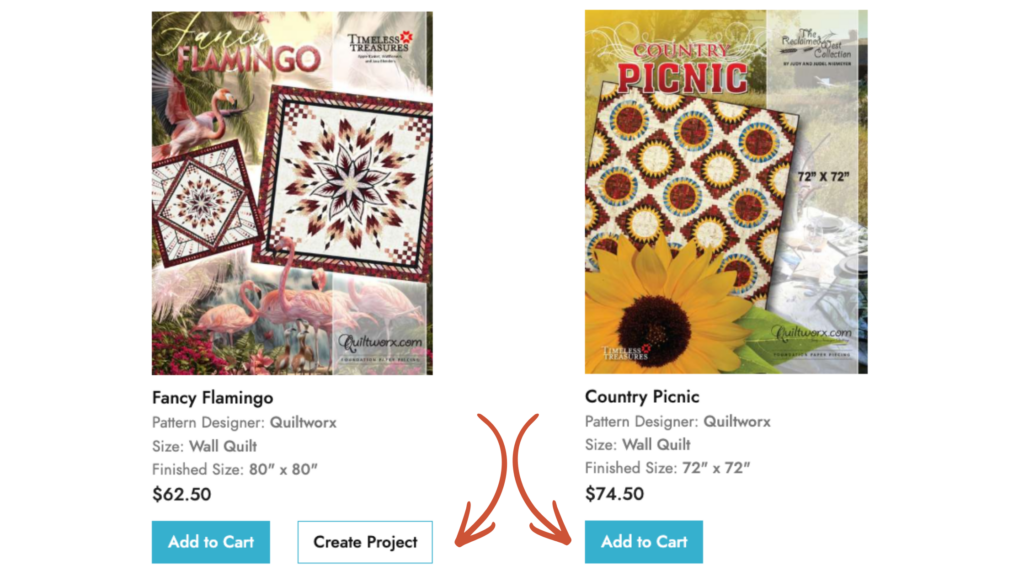
Patterns are displayed in a catalogue-style grid of patterns. Each pattern appears as a card with a cover image, pattern details and action buttons.
Action buttons may include an Add to Cart button, a Create Project button and/or a View Options button. Only patterns with a Create Project button are customizable in the Quilt Planner.
Which Patterns are Customizable?
Any pattern with a Create Project button is able to be used in the Quilt Planner.
If you see a pattern that has an Add to Cart button, but no Create Project button, that means it is available for purchase but unfortunately, it is not Quilt Planner compatible and cannot be customized in our program.
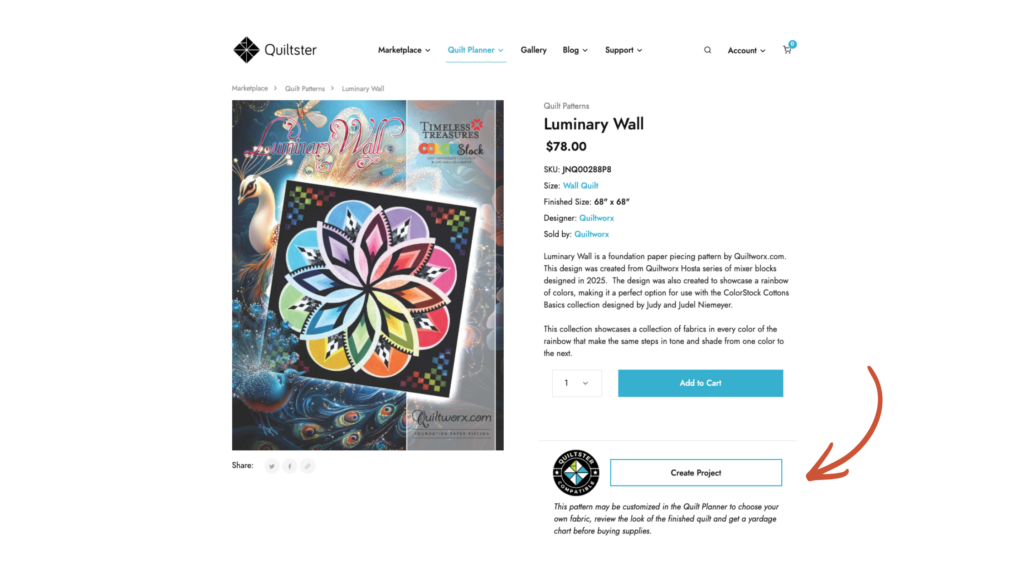
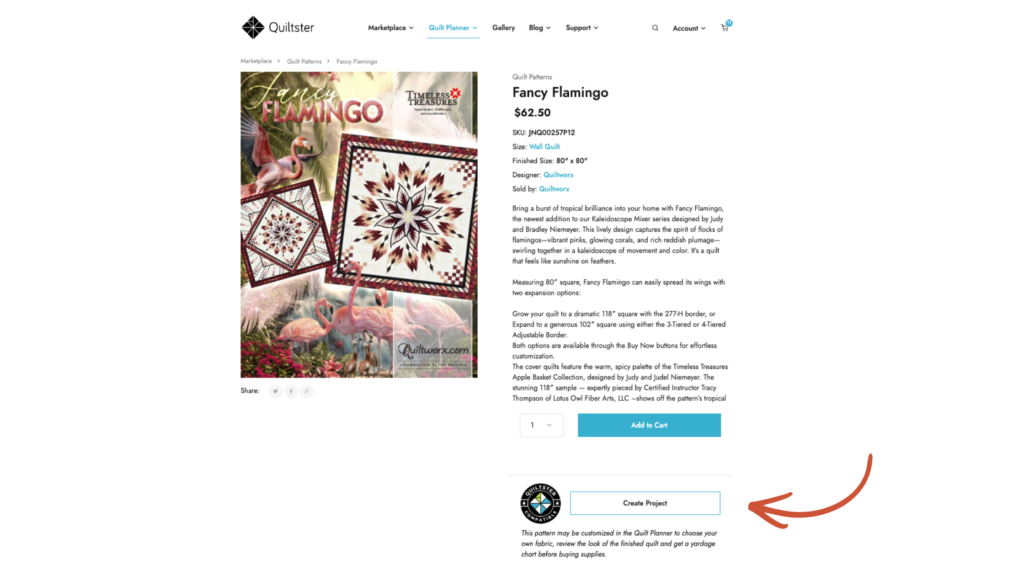
You will also see the Create Project button on the pattern detail page after clicking on the cover image from the catalogue page. There you will also see a Quiltster Compatible stamp.
Narrowing Down Your Pattern Search
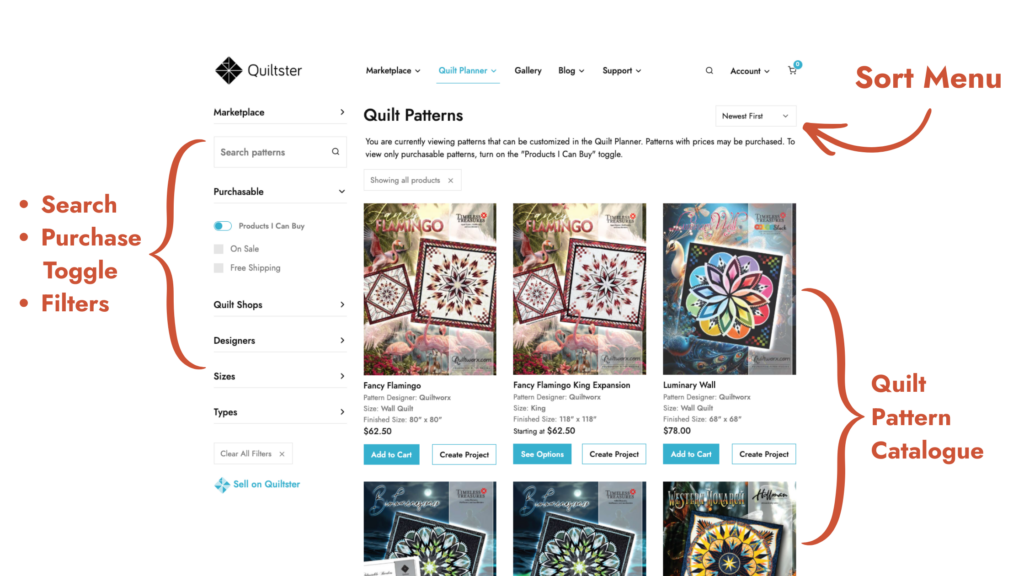
Make use of the tools on the Quilt Pattern page to narrow down your search for the perfect pattern.
- Sorting Menu
- Search Field
- Purchasable Toggle
- Filters
Sorting Menu
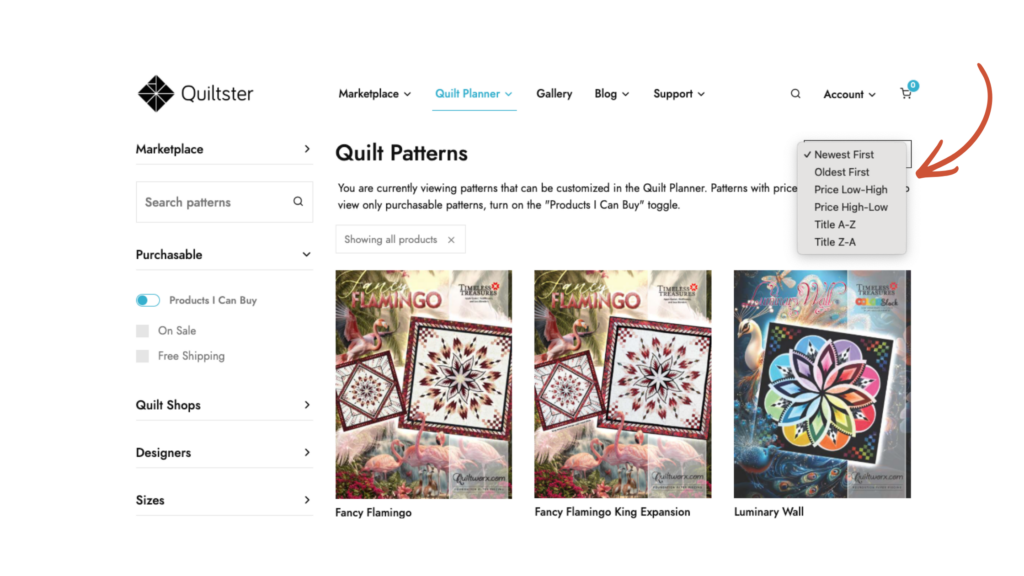
At the top of the page, use the sorting menu to rearrange patterns by:
- Alphabetical (A–Z)
- Price (low to high or high to low)
- And other helpful options
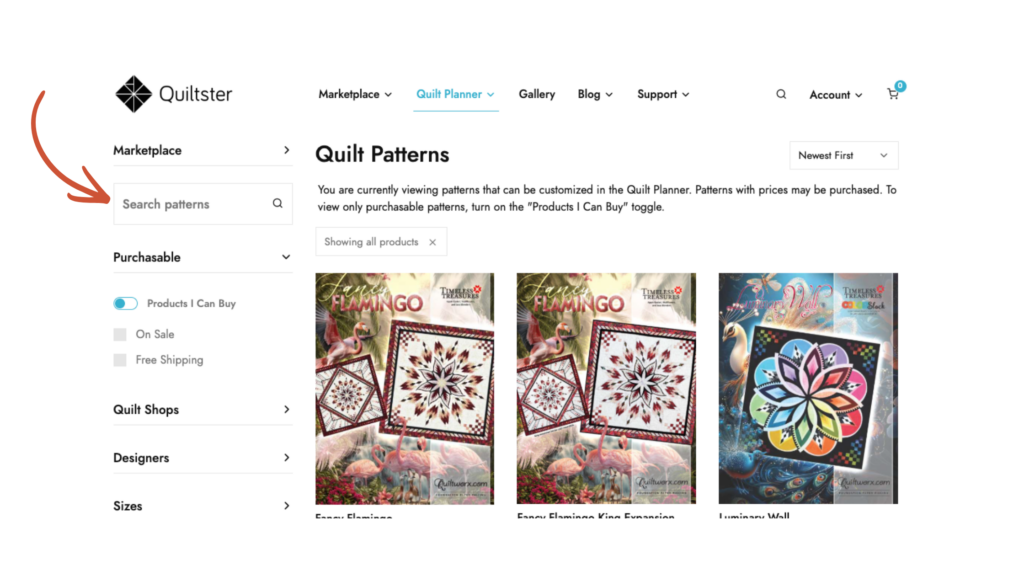
Search Field
On the left side of the page you will find a search field. Into the search field you can type::
- One word from the pattern title
- Or the full name, if you know it
Purchasable toggle
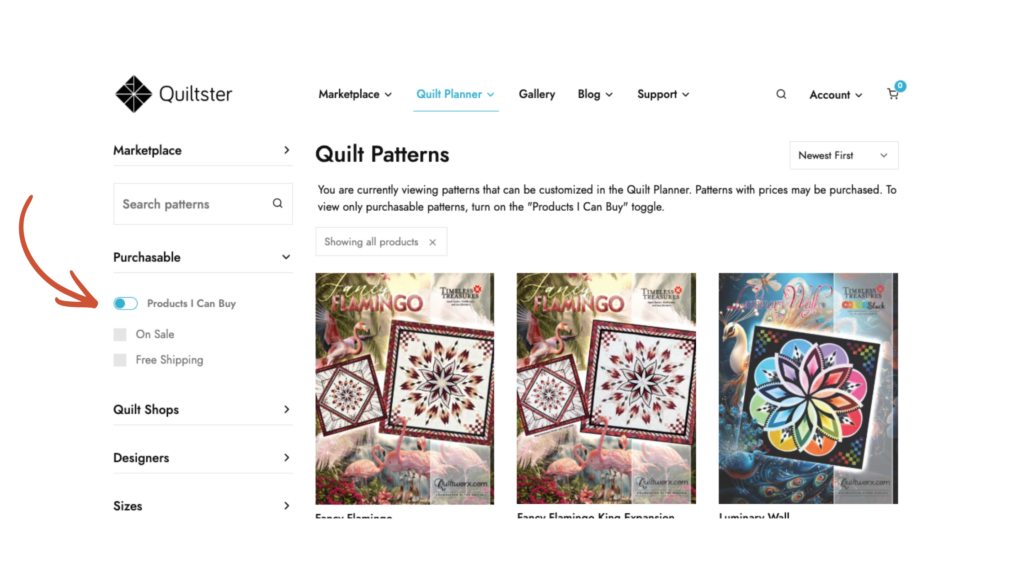
On the left side of the page, you will see the Products I Can Buy toggle.
OFF: Shows all customizable patterns (even if they aren’t sold in the Marketplace).
When it is toggled OFF the button is blue with white background.

ON: Shows only patterns you can purchase directly on Quiltster.com. Some patterns are customizable, some are not.
When it is toggled ON the button is white with a blue background.

Pro Tip:
If your goal is to design and experiment, leave this OFF.
If your goal is to design and shop right away, turn it ON.
Filters
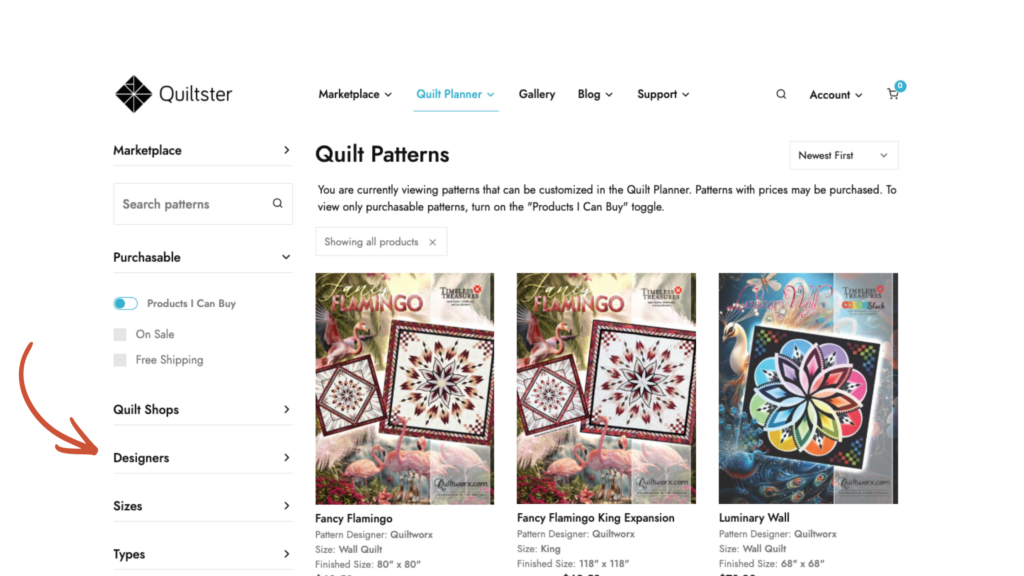
Filters are located on the left-side of the pattern catalogue page
- Quilt Shops
- Designers
- Sizes
- Types
These tools work together, so you can quickly move from hundreds of patterns to just the ones that fit your vision.
What Does the Filter "Types" Mean?
When you use the Types filter on the left side of the Quilt Patterns page, you’ll see several options. These help you understand how a pattern works and what kind of customization experience to expect. Here’s a quick guide:
Quiltworx Strip Set Compatible
These patterns are designed to work especially well with Quiltworx Strip Sets, pre-coordinated fabric bundles that make cutting and piecing faster and more accurate.
Mixer Patterns
Mixer patterns are designed by Quiltworx and include:
- A blank layout
- A collection of pre-designed blocks
You get to mix and match blocks to create your own custom quilt layout. No two projects have to look the same!
Expansion Mixer Patterns
These begin as a wall-size quilt and include blank border areas. You can select from pre-designed block options to expand the quilt to Queen or King size while still keeping everything balanced and beautiful.
Downloadable
These are patterns you can purchase and download instantly for immediate use. No waiting for shipping.
Printed Patterns
These are physical paper patterns that will be shipped to you after purchase.
Quiltworx Technique of the Month
These patterns are part of Quiltworx’s Technique of the Month program. They are fully customizable in Quiltster, but can only be purchased from Quiltworx Certified Shops.
Discontinued
These patterns are no longer being printed by the manufacturer but you may already own one or still find it in a shop. Quiltster lets you digitally audition fabrics for these classics and bring them back to life.
Pattern Information
If you want to go directly into the Quilt Planner, click the Create Project button on the catalogue page. This will immediately launch you into the Quilt Planner experience where you would select a template to use for your project.
If you want to learn more about the pattern first, click on the image of the pattern cover which takes you to the pattern detail page where you can learn more about the pattern before deciding to customize.
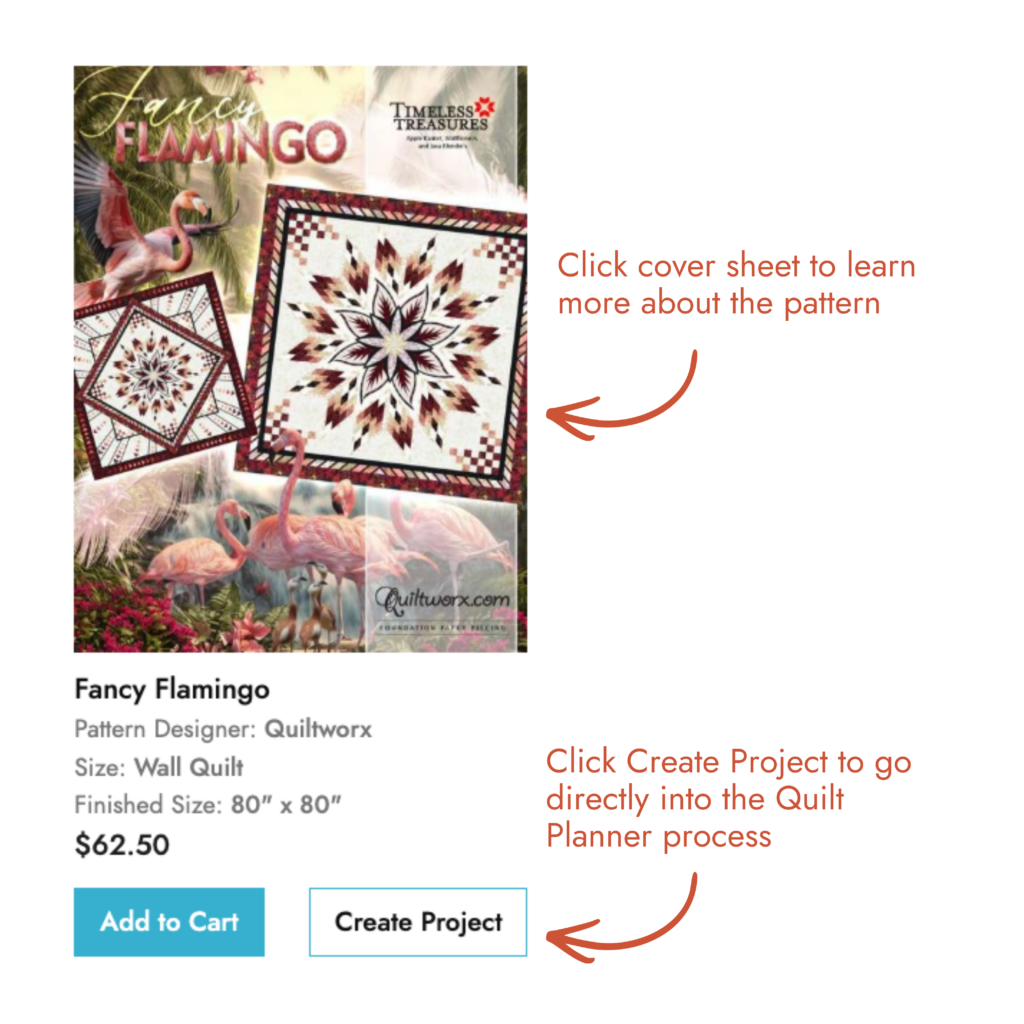
When you go to the pattern detail page, you will be able to take next steps there as well. Here is a quick rundown of the different action buttons you may see:
Add to Cart

This pattern is available to purchase on Quiltster.com. Click to add it to your shopping cart.
Pro Tip: If you want to customize first, do not click Add to Cart yet. Instead, click Create Project to begin planning your quilt.
Get Pattern from Designer

This pattern is not sold on Quiltster.com. Clicking it will take you to the designer’s website where you can purchase the pattern directly from them.
Create Project

This pattern is customizable in the Quilt Planner. Click to begin the Quilt Planning process. You do not have to buy the pattern to design but you do need to have an active subscription.